About

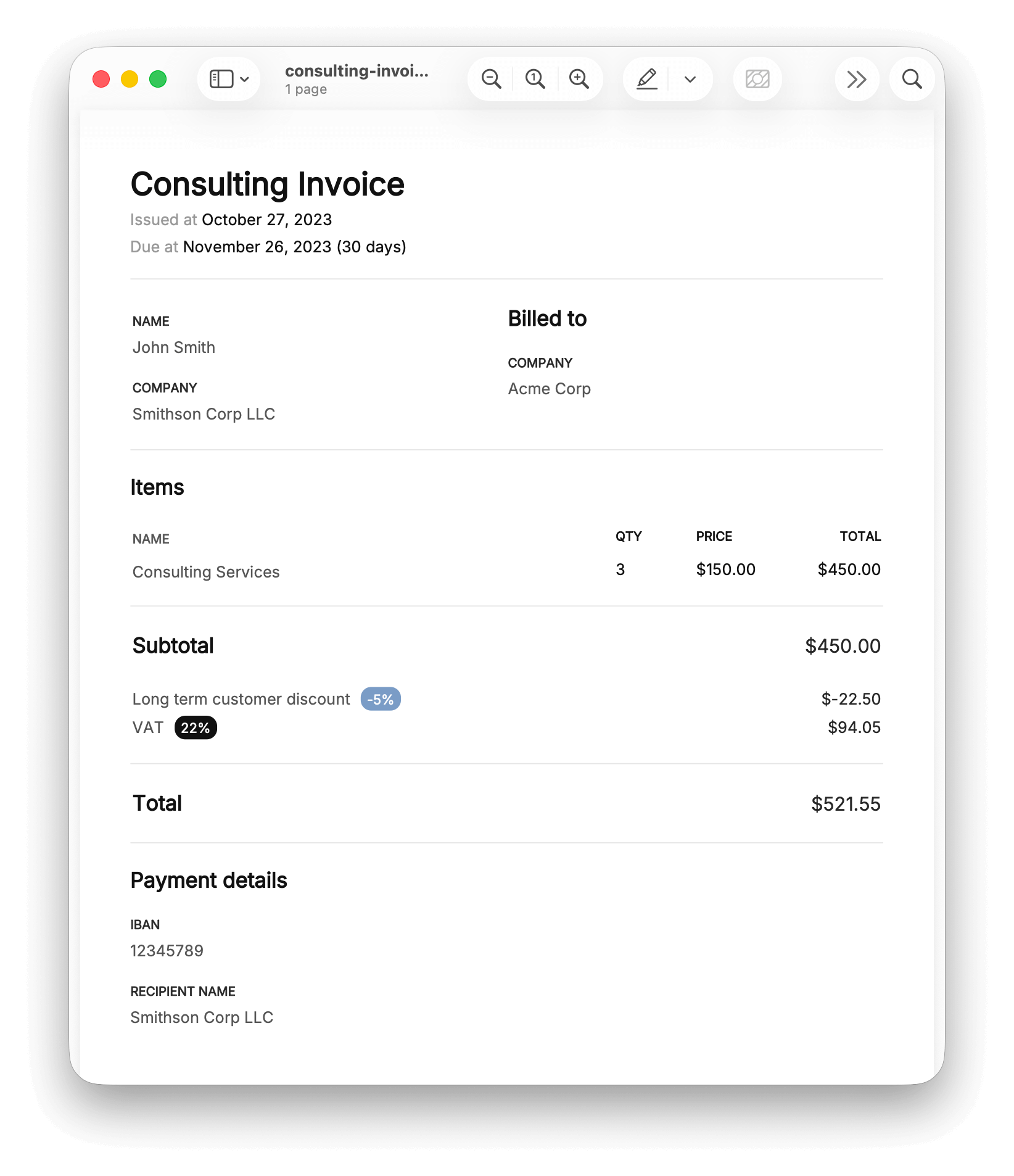
Invobi is an MCP (Model Context Protocol) server that generates professional PDF invoices directly from your AI assistant. Instead of switching between apps, templates, and spreadsheets, you describe what you need and Invobi produces a clean, properly formatted PDF.
How it works
Invobi runs as a local MCP server that AI clients – such as Claude Desktop, OpenCode, or any MCP-compatible assistant – connect to over stdio. Once connected, your assistant gains the ability to create invoices, manage reusable templates, and generate PDFs on demand.
A typical workflow looks like this:
- Set up once – Save your company details, preferred currency, locale, and payment information as a reusable context (template).
- Invoice on demand – Tell your assistant who to bill, what for, and where to save the PDF. Invobi handles the rest: layout, formatting, calculations, currency symbols, date localization.
- Get a PDF – A properly typeset invoice is written to disk, ready to send.
What you get
- Professional PDF invoices.
- 11 currencies – USD, EUR, GBP, JPY, CAD, AUD, CHF, SEK, NOK, DKK, and PLN.
- 16 locales – Correct date formats, number separators, and currency symbol placement for US, UK, DE, FR, ES, IT, NL, EE, SE, NO, FI, DK, PL, JP, AU, and CA.
- Reusable contexts – Save your company details and preferences once, then reference them for every invoice without repeating yourself.
- Discounts and taxes – Percentage-based or fixed-amount adjustments, applied in the correct order (discounts first, then taxes on the discounted subtotal).
- Fully local – No network calls for invoice generation. Your data stays on your machine.
- Self-updating – The MCP server can update itself to the latest version with a single tool call.
Supported platforms
Invobi provides pre-built binaries for:
- macOS (Apple Silicon and Intel)
- Linux (x86_64 and ARM64)
- Windows (x86_64)
Getting started
-
Download the binary for your platform from the downloads page.
-
Configure your MCP client to launch the
invobibinary. For example, in your MCP client configuration:{ "mcpServers": { "invobi": { "command": "invobi" } } } -
Purchase a license at buy.invobi.com and activate it by asking your assistant to set the Invobi license key.
-
Start invoicing – ask your assistant to create an invoice and it will handle the rest.
For detailed information on every available tool and its parameters, see the Documentation page.